www.canva.com
how to delete wallpaper on iphone Customizing your iPhone’s wallpaper is a quick and easy way to add a personal touch to your device. However, there might come a time when you want to delete or change your current wallpaper to something new. Whether you’re bored with the current one, want a cleaner look, or simply wish to experiment with different backgrounds, this guide will show you How to Delete Wallpaper on iPhone: A Step-by-Step Guide with ease.
Understanding iPhone Wallpapers
Before we dive into the steps for how to delete wallpaper on your iPhone or change it, it’s important to understand the types of wallpapers available on iPhones:
- Dynamic Wallpapers: These are animated wallpapers that move in the background. They provide a lively feel to your home and lock screens.
- Still Wallpapers: These are static images that don’t move. You can select from Apple’s pre-loaded options or use any image from your photo library.
- Live Wallpapers: Live wallpapers animate when you press and hold on the screen. They are a middle ground between still and dynamic wallpapers.
Why Delete a Wallpaper?
There are several reasons why you might want to delete a wallpaper from your iPhone:
- Clutter-Free Look: You might want a more minimalistic and clean interface.
- Privacy Concerns: Certain wallpapers might reveal too much information about your personality or interests.
- Change in Aesthetics: You may want to change your wallpaper to better match your new case, mood, or seasonal theme.
- Performance Improvement: In rare cases, dynamic or live wallpapers could slightly affect your battery life.
Step-by-Step Guide to Deleting Wallpaper on iPhone
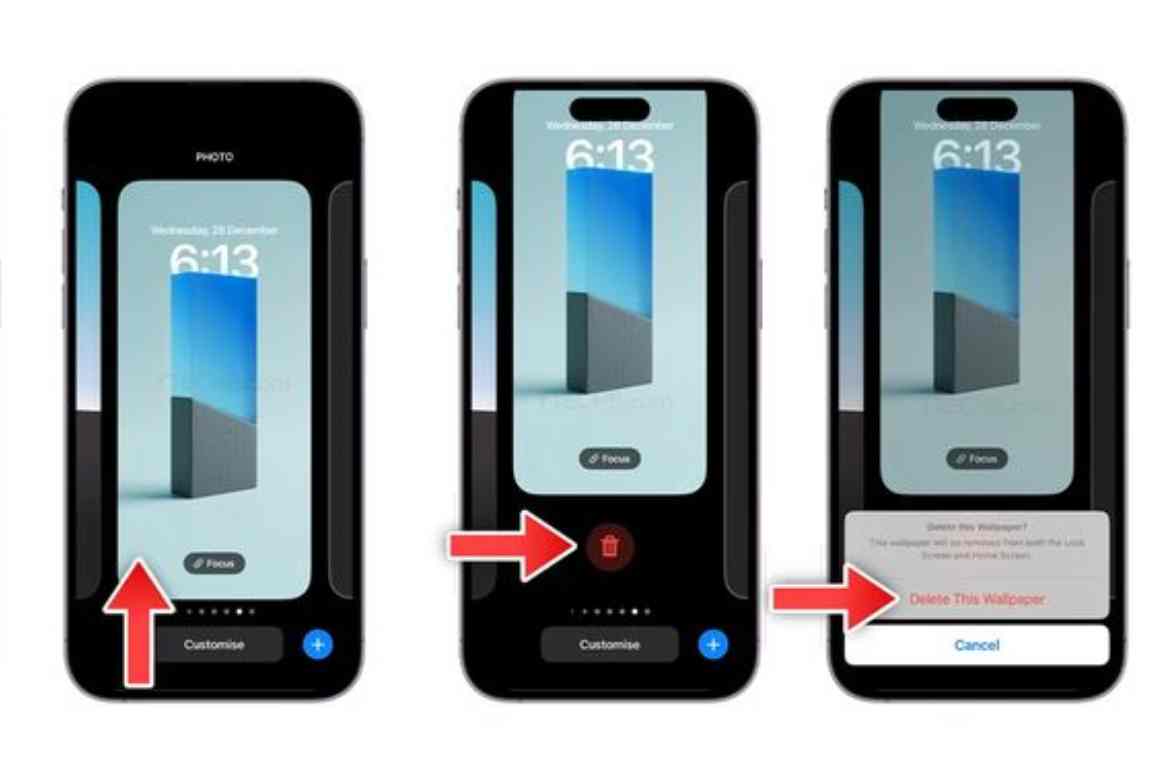
Now that you know why you might want to delete a wallpaper, let’s explore how to do it. The process is straightforward and can be done in just a few minutes.
1. Accessing the Wallpaper Settings
To begin, you need to access the wallpaper settings on your iPhone:
- Open the Settings App: This is the gray gear icon located on your home screen.
- Navigate to Wallpaper: Scroll down until you find the “Wallpaper” option, and tap on it. This will bring you to a screen showing your current wallpapers for both the lock screen and home screen.
2. Selecting the Wallpaper to Delete
Once in the wallpaper settings:
- Tap on Choose a New Wallpaper: This option will appear just below your current wallpapers. Tapping it will lead you to a selection screen where you can pick a new wallpaper.
- Select a New Wallpaper: You can choose from Dynamic, Stills, or Live wallpapers provided by Apple, or you can select a photo from your gallery. By choosing a new wallpaper, you automatically replace the current one.
3. Setting the New Wallpaper
After selecting a new wallpaper:
- Adjust and Set: You will be given the option to move and scale the new wallpaper. Once you’re satisfied with how it looks, tap “Set.”
- Choose Where to Apply It: You can choose to set the new wallpaper as your lock screen, home screen, or both.
4. Deleting Unwanted Photos Used as Wallpapers
If you were using a photo from your gallery as wallpaper and want to delete it completely:
- Open the Photos App: Locate the image you were using as wallpaper.
- Delete the Image: Tap on the trash can icon to delete the photo. Note that if this photo is currently set as your wallpaper, the wallpaper will remain active until you select a new one, even though the photo has been deleted from your gallery.
5. Using a Default Wallpaper
If you wish to remove a custom wallpaper and revert to one of the default options provided by Apple:
- Choose a New Wallpaper: Go back to the “Choose a New Wallpaper” option.
- Select a Default Wallpaper: Choose from the pre-installed Dynamic, Stills, or Live options.
- Set the Wallpaper: Follow the same process to set it as your lock screen, home screen, or both.
Tips for a Cleaner Look
If your goal is to achieve a more streamlined or minimalistic look, here are some tips:
- Use Plain Backgrounds: Opt for solid colors or simple gradients to minimize visual clutter.
- Avoid Overly Detailed Images: Photos with too many elements can make your screen appear chaotic.
- Match with iPhone Theme: Choose a wallpaper that complements the overall color scheme of your iPhone’s interface.
Troubleshooting Common Issues
Sometimes, you might encounter issues while changing or deleting a wallpaper. Here are some common problems and their solutions:
- Wallpaper Not Changing: Ensure that you’ve selected the correct option when setting the wallpaper (lock screen, home screen, or both). Also, try restarting your device if the wallpaper doesn’t update.
- Can’t Find Photos in Gallery: If you’ve deleted the photo from the “Recently Deleted” folder, it’s permanently gone. You’ll need to select a new image for your wallpaper.
- Dynamic and Live Wallpapers Not Working: These require 3D Touch to function. Make sure it’s enabled in your settings, or choose a still image if your device doesn’t support 3D Touch.
Conclusion
Deleting and changing wallpapers on your iPhone is a simple process, but it can have a big impact on how your device looks and feels. Whether you’re aiming for a fresh aesthetic, better performance, or just a change of scenery, knowing how to manage your wallpapers effectively is a useful skill. Follow the steps outlined in this guide, and you’ll be able to easily delete and update your iPhone’s wallpaper to suit your needs.
FAQs
No, you cannot delete a wallpaper directly from the home screen. To change or delete a wallpaper, you need to go through the iPhone’s settings under the “Wallpaper” section.
When you select a new wallpaper, the old one is automatically replaced. If the old wallpaper was a photo from your gallery, the image remains in your Photos app unless you manually delete it.
If the wallpaper was a photo from your gallery and you deleted it, you can recover it from the “Recently Deleted” album in the Photos app within 30 days. If it was one of Apple’s pre-installed wallpapers, you can always reselect it from the “Choose a New Wallpaper” section.
About the Author


